The WordPress admin dashboard is one of those things that has looked roughly the same for years. It shows you some stats, maybe a welcome panel, and a handful of widgets you probably disabled on day one. For a long time I wanted something more useful there — something I’d actually look at.
That’s where Custom Dashboard Widgets started. Version 3 has just been tagged and released, and it’s the biggest update yet: a full architectural rewrite, an AI assistant, a built-in CLI terminal, and integration with the new WordPress Abilities API.
Here’s a breakdown of what’s in it.
The Widgets
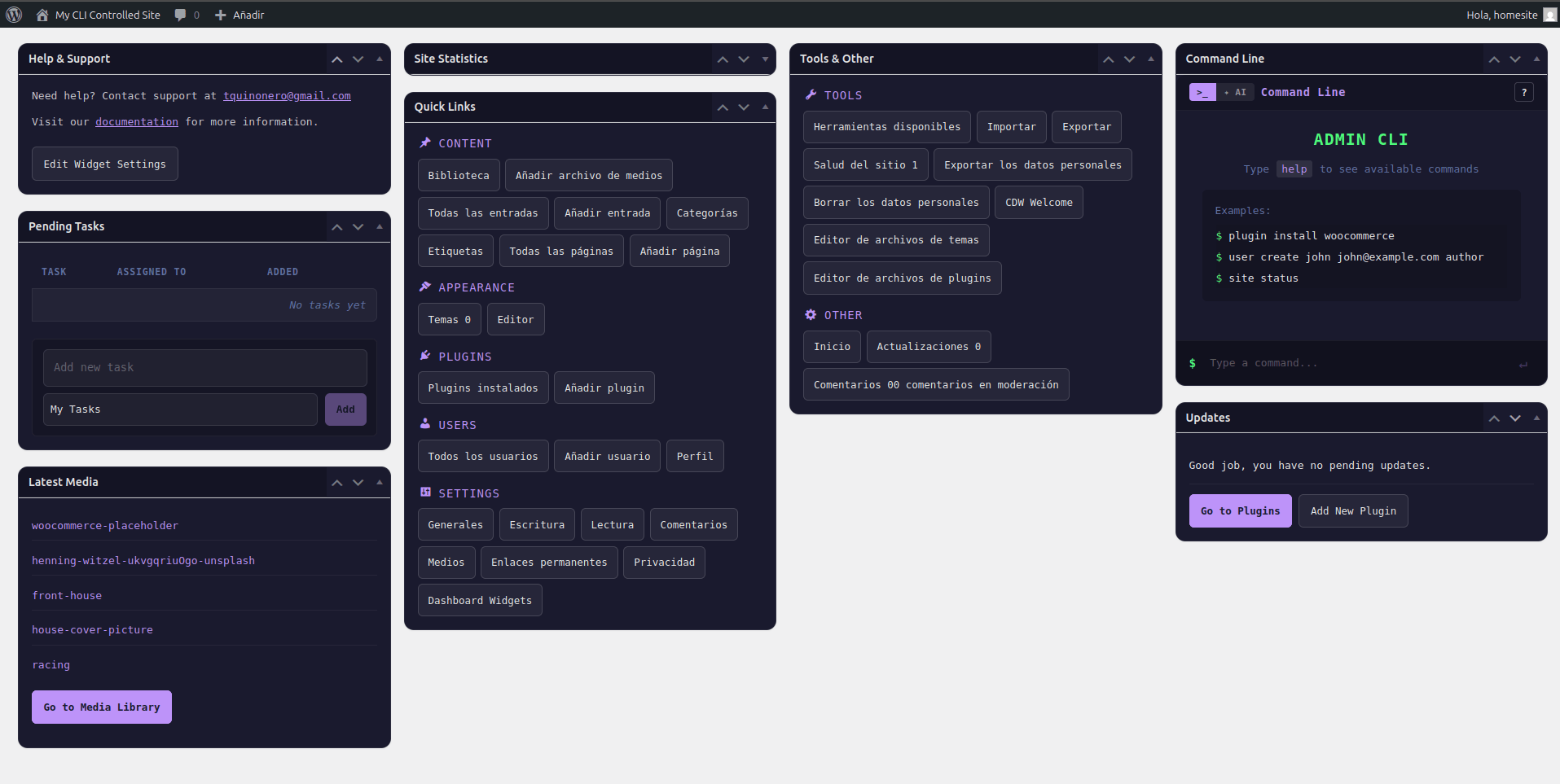
There are nine widgets you can mix, match, and rearrange using the native WordPress drag-and-drop system:
- Help & Support — Display a support email and documentation link for your team or clients.
- Site Statistics — Post, page, comment, user, and media counts at a glance.
- Latest Media — Quick access to recently uploaded files.
- Latest Posts — Your most recent published content.
- Pending Tasks — A personal todo list stored per user, so each team member has their own.
- Updates — Available plugin and theme updates (admin only).
- Quick Links — Fast access to common admin pages (admin only).
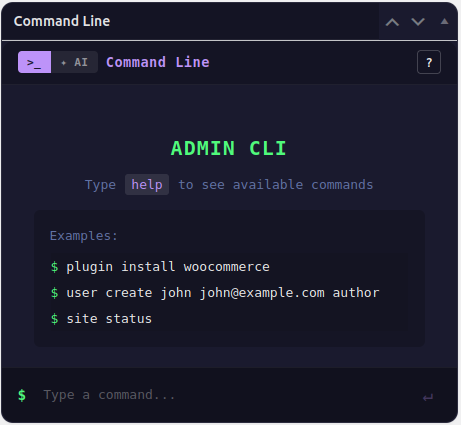
- Command Line — A WP-CLI-like terminal for managing the site from the dashboard (admin only).
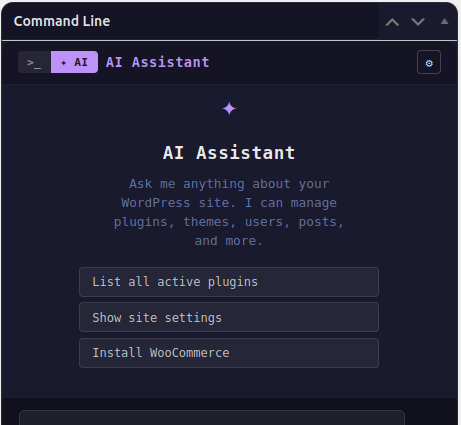
- AI Assistant — Conversational AI that can manage your site using natural language (admin only).
Every widget can be individually enabled or disabled from the settings page. You can also remove the default WordPress dashboard widgets if you want a clean slate.
The CLI Terminal
This is probably the feature I use most day-to-day. The Command Line widget gives you a terminal interface inside the WordPress admin, powered by WordPress APIs rather than a real shell, so it works on any host — no SSH access required, no WP-CLI installed on the server needed.
It covers the commands you actually reach for: plugin and theme management, user operations, post management, database optimization, transient flushing, search-replace with a --dry-run option, maintenance mode, cron inspection, and more.
Destructive operations require an explicit --force flag, critical options are protected from accidental overwrite, and every command is logged to an audit table so you have a record of what ran and when.
The AI Assistant
The AI widget connects to your provider of choice — OpenAI, Anthropic (Claude), Google Gemini, or any OpenAI-compatible endpoint like OpenRouter or Groq — using your own API key.
Under the hood it uses an agentic loop with function-calling tools that map to CDW CLI commands. So when you ask it to “list plugins with available updates” or “create a draft post titled X,” it’s not guessing — it’s calling the same exact commands the CLI widget uses.
There are two execution modes:
- Confirm (default) — The AI proposes an action and you approve it before anything runs.
- Auto — The AI executes immediately. Useful for trusted, repetitive tasks.
Your API key is encrypted with AES-256-CBC before being saved to the database, using a key derived from your site’s AUTH_SALT and SECURE_AUTH_SALT constants. The raw key is never returned by any REST endpoint.
WordPress Abilities API
This is the piece I’m most excited about from a forward-compatibility standpoint. WordPress 6.9 introduced the Abilities API, and CDW v3 registers all 31 of its admin tools as native WP_Ability objects in the cdw-admin-tools category.
All abilities are REST-exposed via the wp-abilities/v1 namespace with show_in_rest: true. Each one carries proper annotations: readonly for safe list/get/status operations, and destructive for anything that deletes. There’s also an opt-in toggle to expose these abilities via an MCP adapter, making them discoverable to external AI clients.
This means the plugin isn’t just a dashboard tool — it’s also an API for site management that any MCP-compatible agent can call.
Architecture and Quality
Version 3 was a complete rewrite. The original 2,500+ line class got split into dedicated controllers and a service layer (CDW_Task_Service, CDW_Stats_Service, CDW_CLI_Service), with separate controllers for stats, media, posts, users, updates, tasks, settings, and CLI. The minimum PHP requirement is now 8.0 and WordPress 6.9.
On the testing side:
- 221 PHP unit tests (Brain\Monkey + Mockery)
- 96 JavaScript unit tests (Jest + @testing-library/react)
- 24 integration tests against a real WordPress database
- PHPCS (WordPress Coding Standards) + PHPStan level 6 — zero errors
- GitHub Actions CI running on every push
The compiled JS is shipped in the repository, so installing from a ZIP download requires no build step at all.
Getting Started
The simplest install path:
- Go to the GitHub repository.
- Click Code → Download ZIP.
- In WordPress go to Plugins → Add New → Upload Plugin, upload the ZIP, and activate.
That’s it. All widget settings live under Settings → Dashboard Widgets once the plugin is active.
If you want to clone and build from source:
cd wp-content/plugins
git clone https://github.com/tquinonero/custom-dashboard-widgets CDW
cd CDW
composer install --no-dev
I built this because I wanted a dashboard I’d actually open on purpose, not just pass through. If you manage WordPress sites regularly — whether for clients, your own projects, or a team — I think this gets the admin dashboard closer to the tool it should be.
Feedback and issues are open on GitHub.